

Published on: 2025-02-01
Creating a Shopify Web Pixel within a custom app is fairly straightforward, but there are a few steps that can trip you up during the setup.
🧱 Setup
First, make sure the Shopify CLI is installed. Using a custom app, start by scaffolding your project:
shopify app init
shopify app dev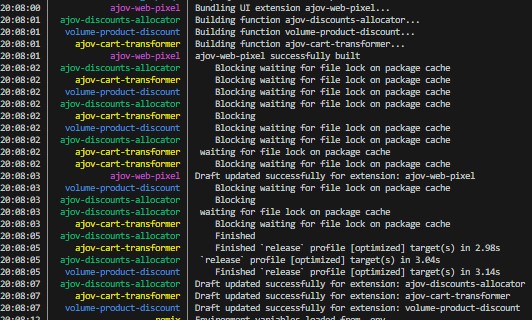
This will link your app to a development store and start the app using Remix and Polaris.
📦 Create a Web Pixel Extension
To generate the Web Pixel extension:
shopify app generate extension --template web_pixel --name your-pixel
Be sure to set the correct access scopes in your shopify.app.toml:
[access_scopes]
scopes = "write_pixels,read_customer_events"
⚙️ Activating the Web Pixel
This is where things can get tricky. There are three ways to activate the extension:
- Shopify Admin GraphQL API – Recommended. After installing the app, use the GraphQL mutation directly.
- Local GraphQL (GrAPI) – When running
shopify app dev, open:http://localhost:3457/graphiql. - Via app – Ideal for more user-friendly activation for store admins.
🔍 Verify Store Connection
Run this query to confirm your store info:
query shopInfo {
  shop {
    name
    url
    myshopifyDomain
    plan {
      displayName
      partnerDevelopment
      shopifyPlus
    }
  }
}
🎯 Create a Web Pixel
Use the mutation below to create a pixel:
mutation {
  webPixelCreate(
    webPixel: {
      settings: "{\"accountID\":\"123\", \"name\":\"Your WebPixel\"}"
    }
  ) {
    userErrors {
      code
      field
      message
    }
    webPixel {
      id
      settings
    }
  }
}
To confirm it was created:
query FindWebPixel {
  webPixel {
    id
    settings
  }
}
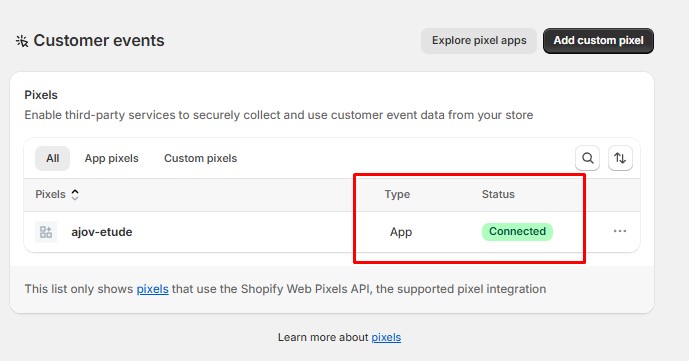
And also can be verified by going to Customer Events, as connected.
Stay aware of any limitations during development, especially if using Shopify Web Pixels outside local testing environments.